
The Runwork desktop app
The Desktop app detects the AI tools on each computer, connects them to Runwork, and turns the folders your AI already works in into spaces your team shares.
Pick this up on your computer
Runwork Desktop installs on Mac, Windows and Linux. Open this page there and it offers the right build.
All platforms and formats
Prefer the terminal? The CLI handles the same setup
What Desktop App gives you
Your spaces, on your computer
Runwork finds the folders your AI already works in and offers them as spaces. Each space is a real folder, so your AI tools open it directly, and nothing leaves your computer until you share it.
A short guided setup
A few screens walk each team member through setup, from finding the AI tools they already use to connecting them to the team. People who already have an AI tool skip the installs, and they can pick up where they left off.
Agent Detection & Setup
Finds Claude, ChatGPT, Copilot, Cursor, Codex, Gemini and the rest of the 60+ AI tools Runwork works with, then connects each one to your team.
Home, My Desk and Recent
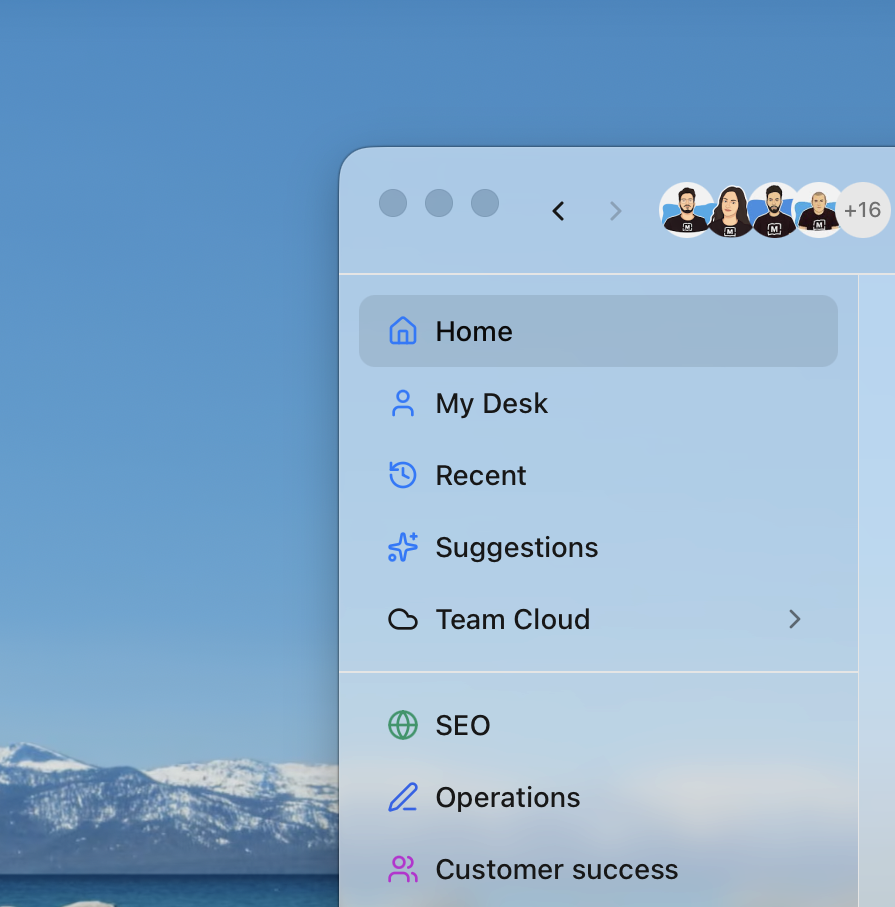
Home shows every space with what changed since you last looked and who is working in it. My Desk holds your work that has no space yet, and Recent tells the whole team's work as one timeline.
Continuous Sync
Runs in the background, so new skills, integrations and team instructions reach your AI tools on their own. Your spaces sync too, and nothing leaves your computer until you choose to share it.
Chats & Insights
Every local AI conversation across your tools in one Chats view: resume it, share it, or let reflection analyze it on your machine and turn it into a suggestion. Nothing your team figures out with AI evaporates when the window closes.
Tray Integration
Lives in your menu bar with a quick status indicator. Green means synced, amber means syncing, red means check your connection. Launch any AI tool, see new suggestions, or open settings from the tray.
Feels like the rest of your computer
A real menu bar, native right-click menus, keyboard shortcuts for your spaces, and an optional Glass look on macOS. Updates install in one step.
Cross-Platform
Works on macOS, Windows, and Linux. Built with Tauri for a lightweight, native experience. Not Electron, so it's fast and uses minimal resources.
Access from anywhere


Desktop & Web
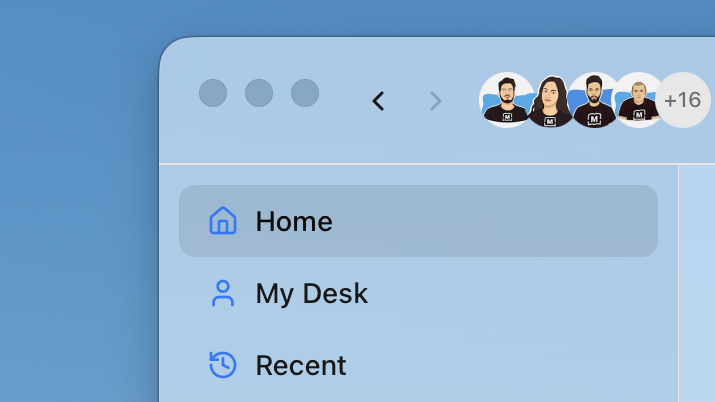
Manage team onboarding settings, monitor who has synced, and configure approved tools from the web dashboard.
CLI
Why Desktop App matters
- Guided onboarding, not just a login link
- Works with 60+ AI tools
- Cross-platform: macOS, Windows, Linux
- Lightweight native app (Tauri, not Electron)
- Continuous background sync keeps everything current
- Your spaces on your computer, shared when you choose
How Desktop App works
1. Download and Sign In
Your team member downloads the Desktop app and signs in with their workspace credentials. Takes 30 seconds.
2. Guided Onboarding
A few screens find their existing AI tools, explain what Runwork adds, and let them choose what to set up. No technical knowledge needed.
3. Tools Detected and Configured
The app scans their machine for Claude Code, Cursor, Windsurf, and other supported tools. It configures each one with your team's shared skills, MCP servers, and workspace settings.
4. Connected and Syncing
Once onboarding is done, the app runs in the background. It keeps their AI tools in sync with the team workspace. When someone on the team creates a new skill or connects a new integration, it flows to everyone automatically.
5. Spaces and Home
Runwork offers the folders their AI already works in as spaces. Home shows what moved in each space and who is working in it, so they start every day where the team left off.
Frequently Asked Questions
Which AI tools does the Desktop app support?
Do team members need the Desktop app?
What platforms does it run on?
How does sync work?
What if someone already has their AI tools configured?
Use Cases
Related Features
See How Teams Use Desktop App
Ready to try Desktop App?
One shared cloud under the AI tools your team already uses.